
Togetha Contacts is a CRM-style contacts app that lives inside Jira, so you can keep people, organisations, and groups alongside the work items they relate to.
What you can do with Contacts
-
Record contacts for people and organisations, with details like email, phone, address, and position.
-
Organise contacts into groups, such as customers, suppliers, or project stakeholders.
-
Link contacts to Jira work items through the Contacts custom field.
-
Search contacts from anywhere in Jira using the command palette.
-
View contacts in the side panel of a work item without leaving the work item.
-
Import contacts in bulk from a CSV file.
-
Share filtered contact views with your team through a URL.
Where Contacts appears in Jira
|
Location |
What it does |
|---|---|
|
Contacts global page |
The main contacts workspace. Open it from the Apps menu, or open the Jira command palette and use the |
|
Contacts work item panel |
A side panel on each work item that shows the contacts linked to that item. |
|
Contacts custom field |
A field you can add to any work item to attach a contact. |
|
New Contact command |
Create a contact without leaving your current page. Open the Jira command palette and use the |
|
Automation action |
Lets a Jira automation rule create a contact from a form on a work item. |
The g c and n c shortcuts work from inside the Jira command palette. Press Ctrl + K (Windows/Linux) or Cmd + K (macOS) to open the palette first, then type the shortcut.
Key concepts
|
Term |
Meaning |
|---|---|
|
Contact |
A single record. A contact is either a person or an organisation. |
|
Group |
A named collection of contacts. A contact can belong to more than one group. |
|
Details |
Structured information attached to a contact, such as email addresses, phone numbers, addresses, positions, and notes. |
|
Relationship |
A link between two contacts, such as a person who works at an organisation, or a contact who reports to another contact. |
|
Linked work item |
A Jira work item that has a contact attached through the Contacts custom field. |
What you'll find in the Contacts page
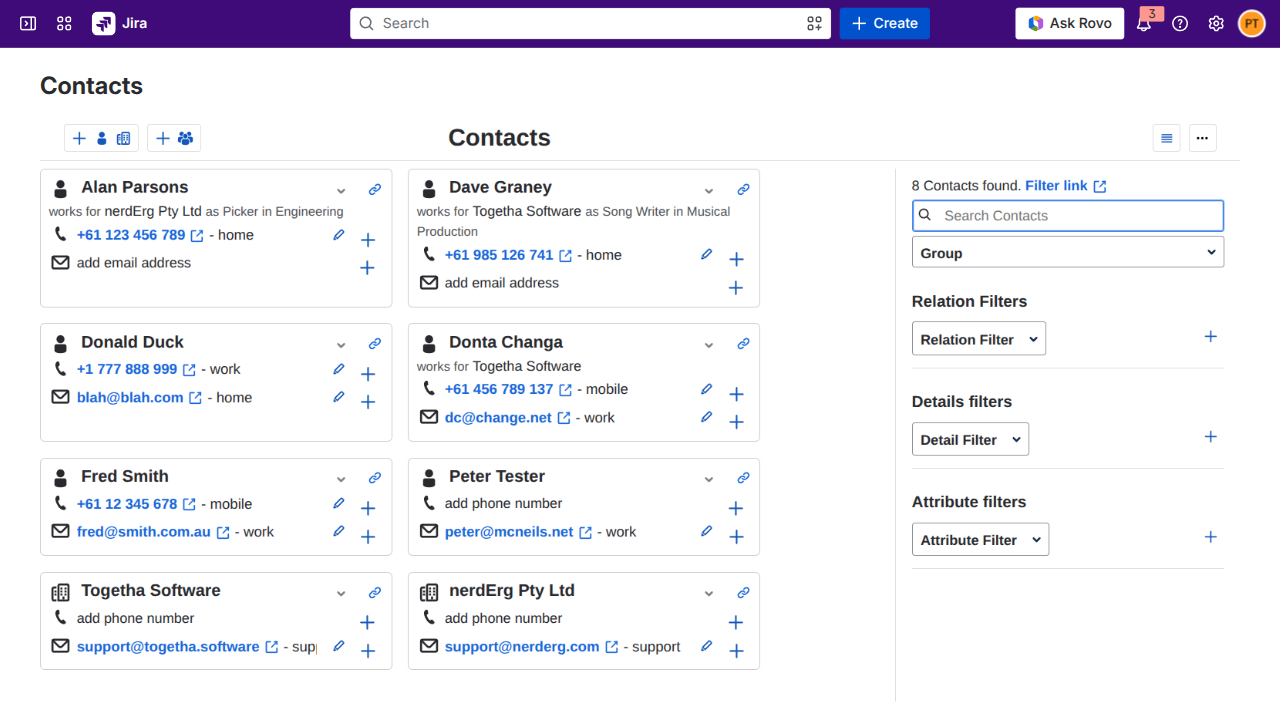
The Contacts page is the main place you'll work with your contacts. It has three areas:
-
A toolbar at the top with Add contact and Add group buttons, a kebab menu for access, imports, and exports, and a layout toggle.
-
A filter side panel on the left, for narrowing the list by search text, group, or contact type.
-
A list or card view of your contacts in the centre. Switch between views using the layout buttons.
Click any contact's name to open the contact details dialog, which shows the contact's full information across tabs for comments, attributes, connections, groups, linked work items, and history.
What an end user can and can't do
You can:
-
Create, edit, and delete your own contacts.
-
Create and edit groups, and add or remove contacts from groups you can see.
-
View contacts that have been shared with you or your team.
-
Link contacts to work items you can edit.
You can't:
-
Change app-wide settings such as entity types or relation kinds. Those are managed by a contacts admin.
-
See contacts that have been restricted to other users or groups.
Where to go next
-
Creating a contact: add your first person or organisation.
-
Working with groups: organise contacts into named collections.
-
Linking contacts to work items: attach a contact to a Jira Work item.
-
Importing contacts from CSV: load contacts in bulk.