
Delete a contact when you no longer need it. Deleting moves the contact to your Trash group first, so you can restore it later or delete it for good.
How deleting works
Deleting a contact doesn't remove it straight away. The contact moves to your Trash group and is taken out of your other groups, so it disappears from your normal contact list. Nothing is lost until you choose to delete it permanently.
|
Action |
What happens |
|---|---|
|
Delete |
Moves the contact to your Trash group. You can undo this. |
|
Restore |
Moves a trashed contact back into your contacts. |
|
Delete permanently |
Removes the contact and its details for good. You can't undo this. |
Your Trash group is private to you. Only the person who deleted a contact can see and restore it.
You can only delete or restore contacts you have write access to. Contacts shared with you read-only can't be deleted, and they're skipped during bulk actions.
Prerequisites
-
You can open the Contacts page from the Apps menu.
-
You have write access to the contacts you want to delete (contacts you created, or contacts in a group shared with you with write access).
Delete a contact
-
Click the contact's name to open the contact details dialog.
-
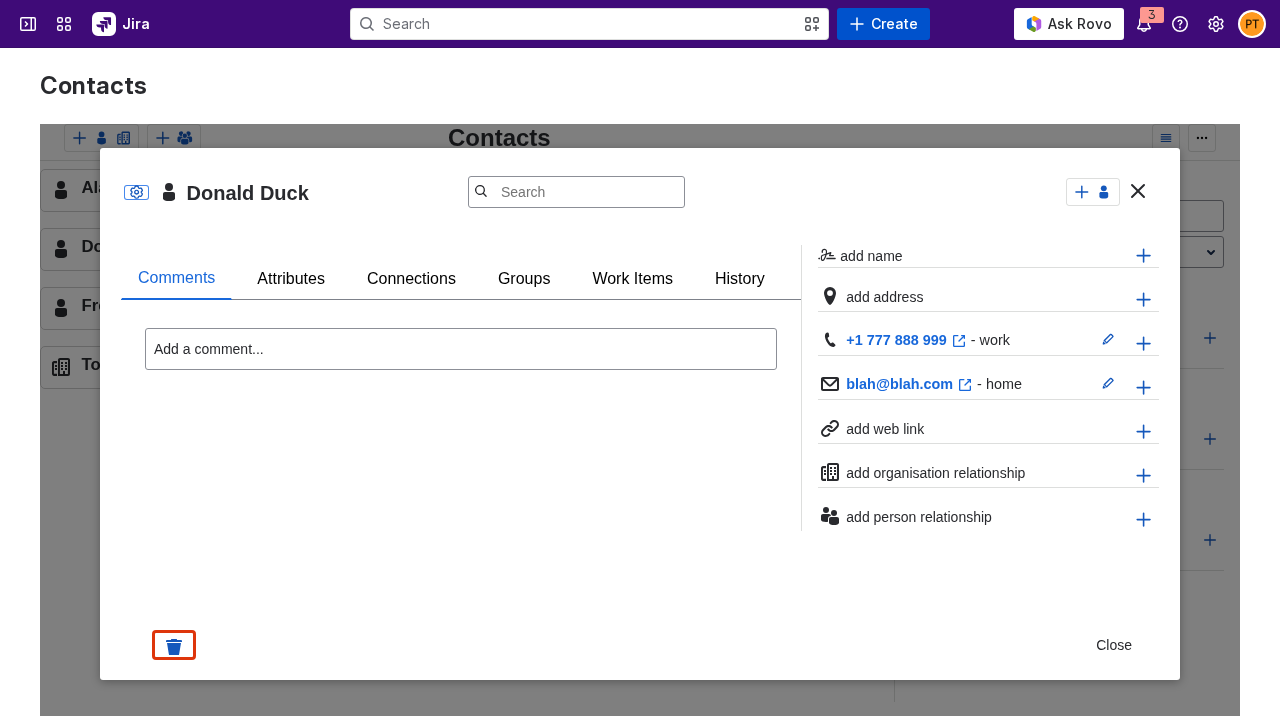
Click the delete button (the trashcan icon) at the bottom-left of the dialog. A Delete? prompt appears.
-
Click the delete button again within a few seconds to confirm. The contact moves to your Trash group and leaves your contact list.
View contacts in the trash
Trashed contacts are hidden from your normal list. To see them, filter by the Trash group.
-
Open the Contacts page.
-
Open the Group filter in the side panel.
-
Select trash. The list shows only the contacts you've moved to the trash.
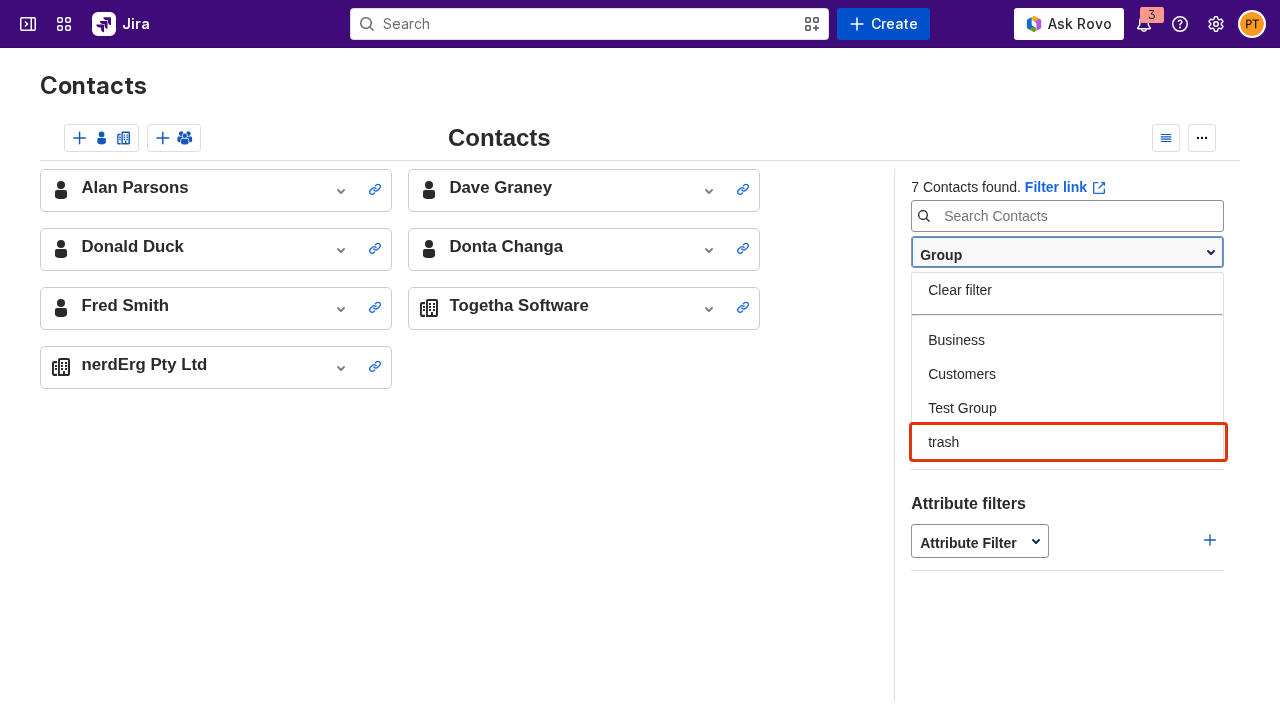
The trash entry appears in the Group filter after you delete your first contact. If you don't see it yet, refresh the page.
Restore a contact
-
Filter by the trash group so the trashed contact appears.
-
Click the contact's name to open the contact details dialog.
-
Click the Restore button. The contact returns to your contacts and leaves the trash.
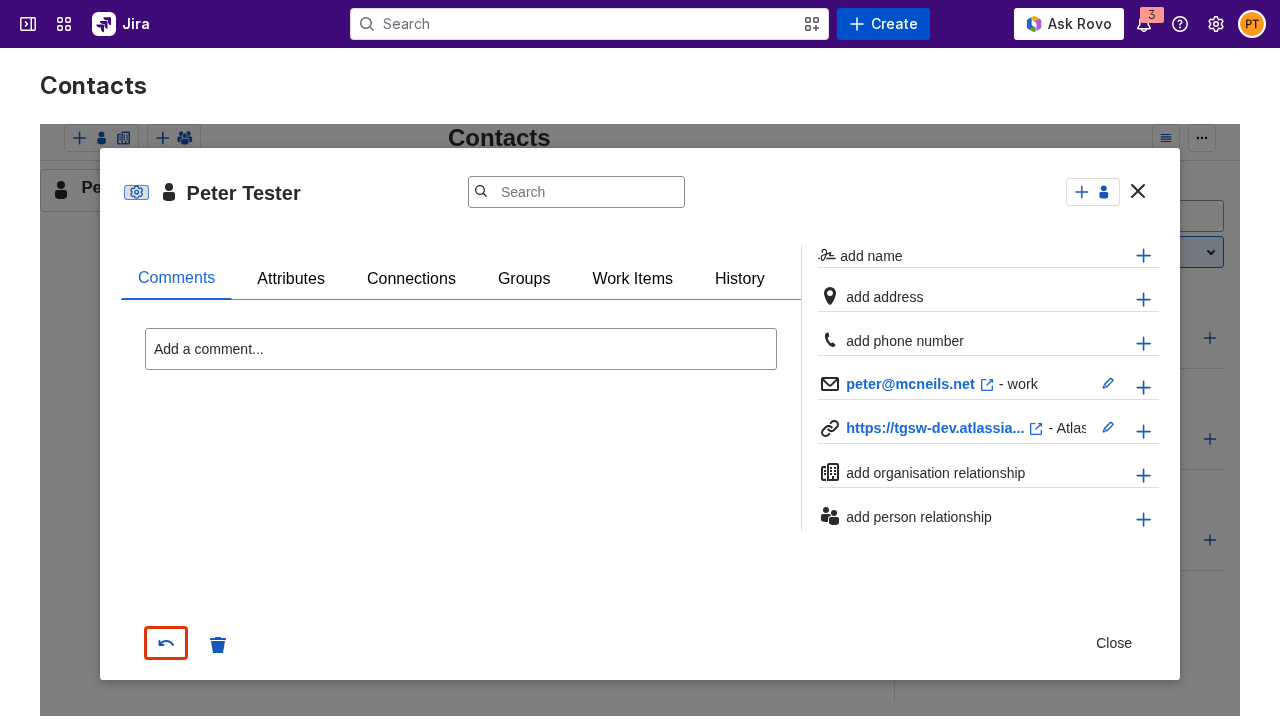
Restoring returns the contact to your default group. If the contact belonged to other groups before you deleted it, add it back to those groups (see Working with groups).
Delete a contact permanently
Permanent deletion can't be undone. It removes the contact and all its details, such as emails, phone numbers, and addresses.
-
Filter by the trash group and click the trashed contact's name to open the contact details dialog.
-
Click the delete button next to the Restore button. A Delete? prompt appears.
-
Click it again to confirm. The contact and its details are removed for good.
Delete or restore several contacts at once
Use list view to act on many contacts in one step.
-
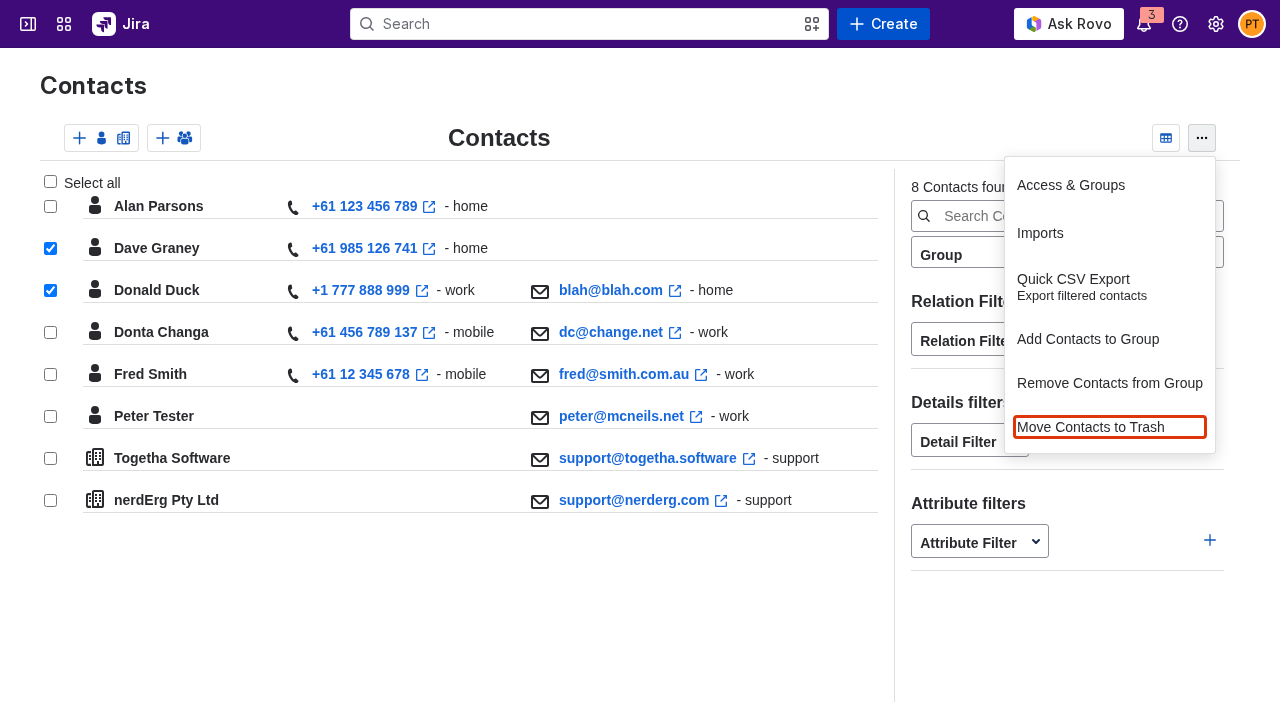
Switch to list view using the table icon on the right of the toolbar.
-
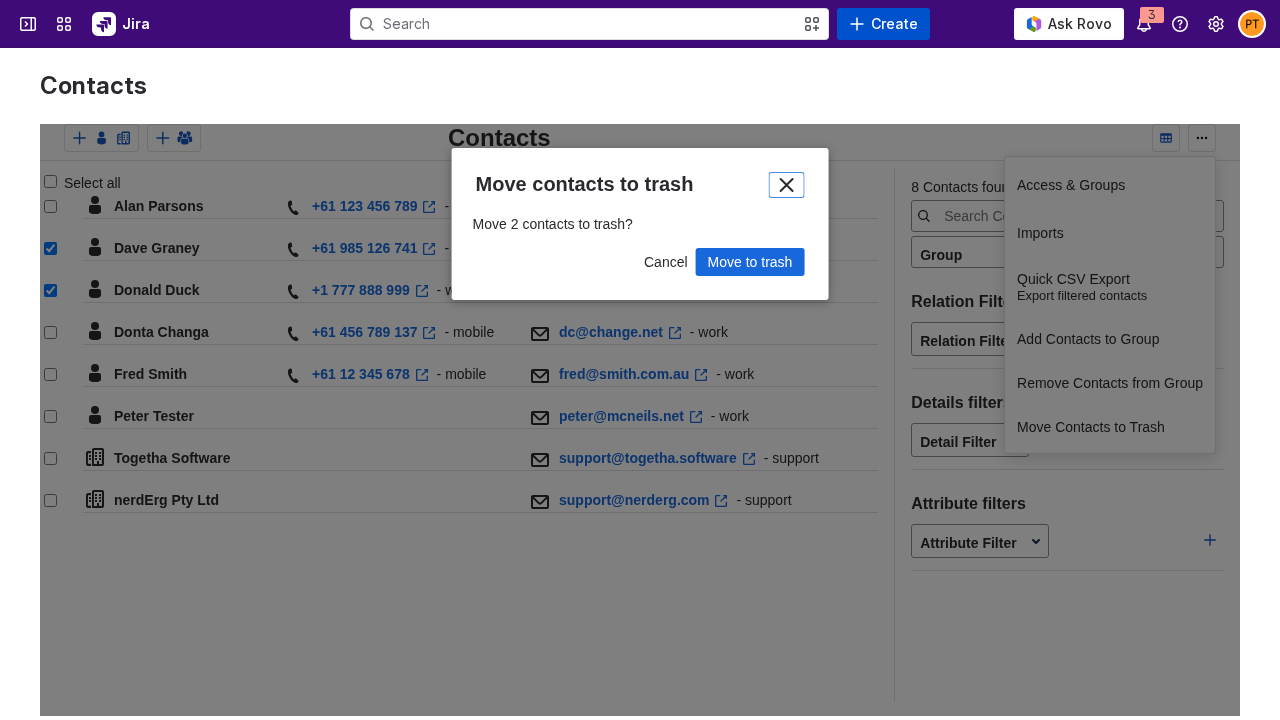
Tick the checkbox on each contact you want to act on.
-
Open the kebab menu (the three-dot menu on the right of the toolbar).
-
Choose the action you need. When you're viewing your normal contacts, the menu offers Move Contacts to Trash. When you're viewing the trash group, it offers Restore Contacts from Trash and Delete Contacts Permanently instead.
-
Confirm in the dialog. The dialog tells you how many contacts it will affect. Moving to trash and deleting permanently both ask you to confirm, and permanent delete reminds you it can't be undone.
If any of the contacts you selected are read-only, the confirmation dialog tells you how many it will skip. Only the contacts you can write to are affected.
Result
Deleted contacts sit in your Trash group, out of your normal list but available through the Group filter. You can restore them to your contacts, or delete them permanently once you're sure you don't need them.
Next:
-
Working with groups: add a restored contact back to the groups it belonged to.
-
Creating a contact: add new contacts to your list.