
Narrow the contact list to the contacts you want using the filters in the side panel on the Contacts page.
Prerequisites
-
You can open the Contacts page from the Apps menu.
-
You have contacts in your list to filter.
The filter panel
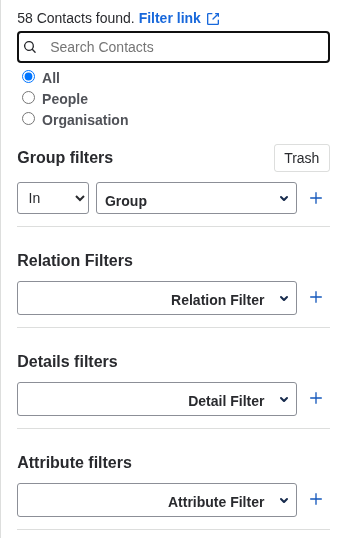
The side panel on the Contacts page holds all the filters, stacked from the top:
-
A count of how many contacts match, and a Filter link.
-
A search box that matches on the contact's name.
-
A contact-type filter (All, People, Organisation).
-
A Group filters section, where you can stack group conditions and combine them with AND or OR.
-
Relation filters, Details filters, and Attribute filters.
The filter kinds combine: a contact has to match the search, the contact type, the group filters, and every relation, detail, and attribute filter to appear. Within the Group filters section you choose AND or OR between the rows (see below). When nothing is selected, the list shows every contact you can see.
Searching by name
Type in the Search Contacts box at the top of the panel. The list updates as you type and keeps only the contacts whose name matches what you typed.
Filtering by contact type
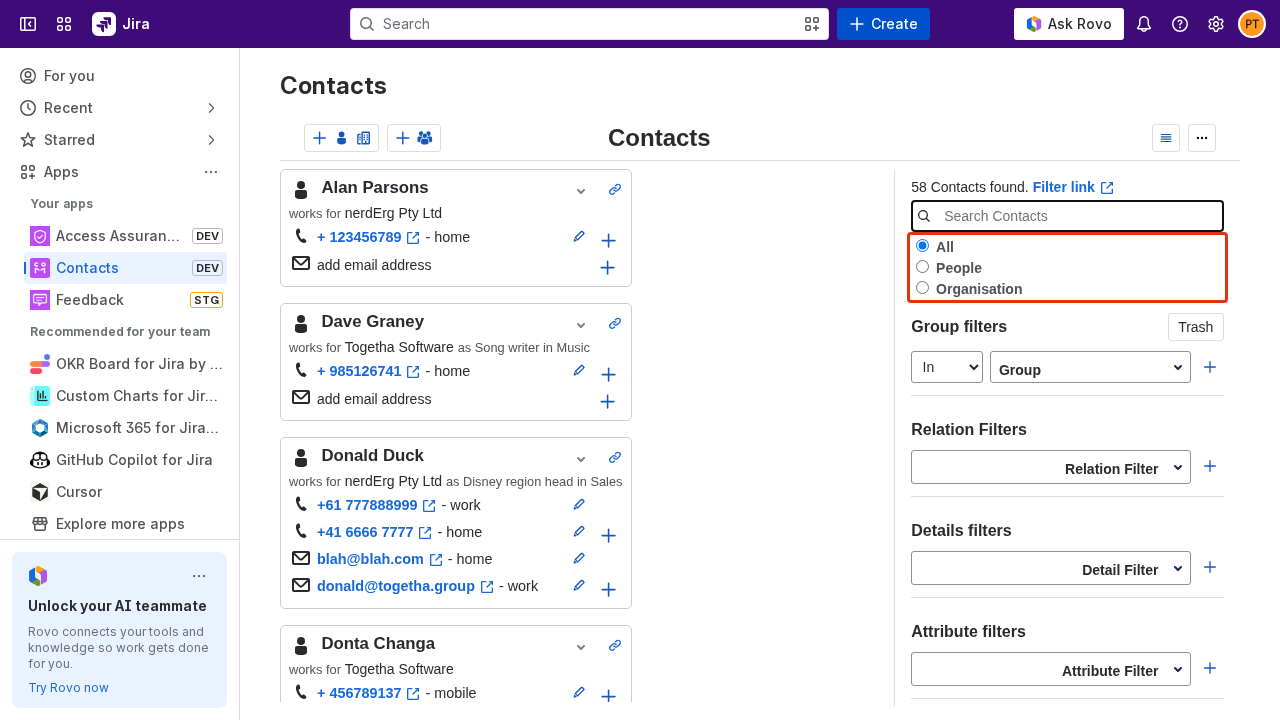
The contact-type filter sits above the Group filters section and limits the list to a single kind of contact. It has three options:
|
Option |
What you see |
|---|---|
|
All |
Every contact, both people and organisations. This is the default. |
|
People |
Only person contacts. |
|
Organisation |
Only organisation contacts. |
Pick an option and the list updates straight away. Choose All again to clear the restriction.
Filtering by group
The Group filters section limits the list by group membership. You can stack several group conditions and choose how they combine, so you can build views like "in Sales but not in Archived" or "in Sales or in VIP".
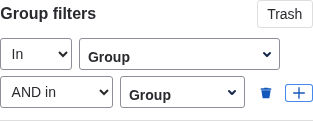
Each row has an operator and a group. The first row keeps it short; later rows add a join word so you can say how that row combines with the rows above it:
-
The first row uses In or Not in.
-
Every row after the first uses AND in, OR in, AND NOT in, or OR NOT in.
To build a group filter:
-
Pick an operator and a group on the first row. The list updates straight away.
-
Add another row with the + button, then choose its operator and group.
-
Remove a row with the delete button next to it.
My Contacts is available as a group and keeps only the contacts you own. For the full details of groups and My Contacts, see Working with groups.
The Trash button at the top of the section is a separate view. Turn it on to show only your trashed contacts; the group rows are disabled while it is on. See Deleting contacts.
How AND and OR combine
Each operator either narrows or widens the list, and the rows are read from top to bottom. Each row changes the result built up by the rows above it:
-
AND makes the filter stricter. A contact is kept only if it matches this row as well as what came before. AND can only ever keep fewer contacts.
-
OR makes the filter wider. A contact is kept if it matches this row, even if it failed the rows above. OR can only ever keep more contacts.
-
Not in flips a row to mean "is not a member of this group".
Here is what each operator keeps:
|
Operator |
Keeps a contact when |
|---|---|
|
In |
it is in the group |
|
Not in |
it is not in the group |
|
AND in |
it was kept so far, and it is in this group |
|
OR in |
it was kept so far, or it is in this group |
|
AND NOT in |
it was kept so far, and it is not in this group |
|
OR NOT in |
it was kept so far, or it is not in this group |
Example: AND narrows the list
-
Row 1: In Sales
-
Row 2: AND in VIP
This keeps only the contacts who are in Sales and also in VIP.
Example: OR widens the list
-
Row 1: In Sales
-
Row 2: OR in VIP
This keeps the contacts who are in Sales, plus the contacts who are in VIP. A contact in either group is kept.
Example: NOT excludes a group
-
Row 1: In Sales
-
Row 2: AND NOT in Archived
This keeps the contacts who are in Sales and are not in Archived.
Example: mixing AND and OR
-
Row 1: In Sales
-
Row 2: OR in VIP
-
Row 3: AND NOT in Archived
Reading top to bottom: start with the Sales contacts, widen to also include the VIP contacts, then apply the last row to everyone kept so far, which removes anyone in Archived. The result is the contacts who are in Sales or VIP and are not in Archived.
Each row applies to the result so far, so the order of your rows matters when you mix AND and OR. Move a row up or down to change how it combines.
Filtering by relation, detail, or attribute
Below the group filters are three sets of filters that match on a contact's data. They work the same way: pick what to match on, then type the value to look for.
-
Relation filters match contacts by a relationship to another person or organisation, such as who they work for.
-
Details filters match contacts by one of their detail fields, such as email, phone, address, name, link, or comment.
-
Attribute filters match contacts by a custom attribute defined on the contact type.
To add one:
-
Click the picker (for example Relation Filter) and choose what to match on from the dropdown.
-
Type a value in the search box that appears next to your choice. The list narrows to contacts whose matching value contains your text.
-
Add another row with the + button to apply more than one filter of the same kind.
-
Remove a row with the delete button next to it, or choose Clear filter in the picker dropdown to clear your selection.

Sharing a filtered view
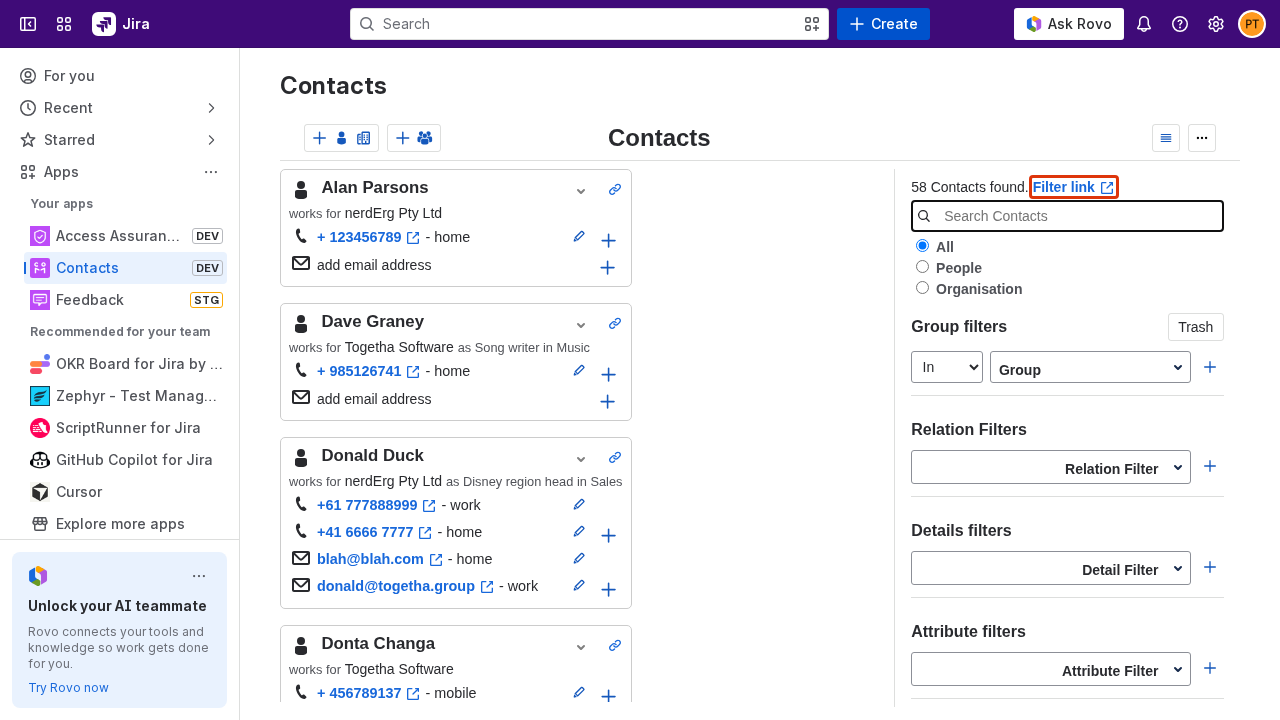
The Filter link at the top of the panel always points at the current view, with every active filter captured in the link, including the contact-type filter and every group row with its operator. Copy it to bookmark a filtered view or share it with a teammate. When someone opens the link, the Contacts page loads with the same filters already applied.
Result
The contact list shows only the contacts that match your filters. Clear each filter to widen the list again, or copy the Filter link to return to the same view later.
Next:
-
Working with groups: organise contacts into groups and share them with your team.
-
Exporting contacts: export the contacts currently in your filtered list.