
Admins review submissions on the Submissions tab of the Feedback page (Jira Apps → Feedback).
Submissions tab
The tab lists every submission across every form. Use the columns to identify what's new and the status badge to see what's already been actioned.
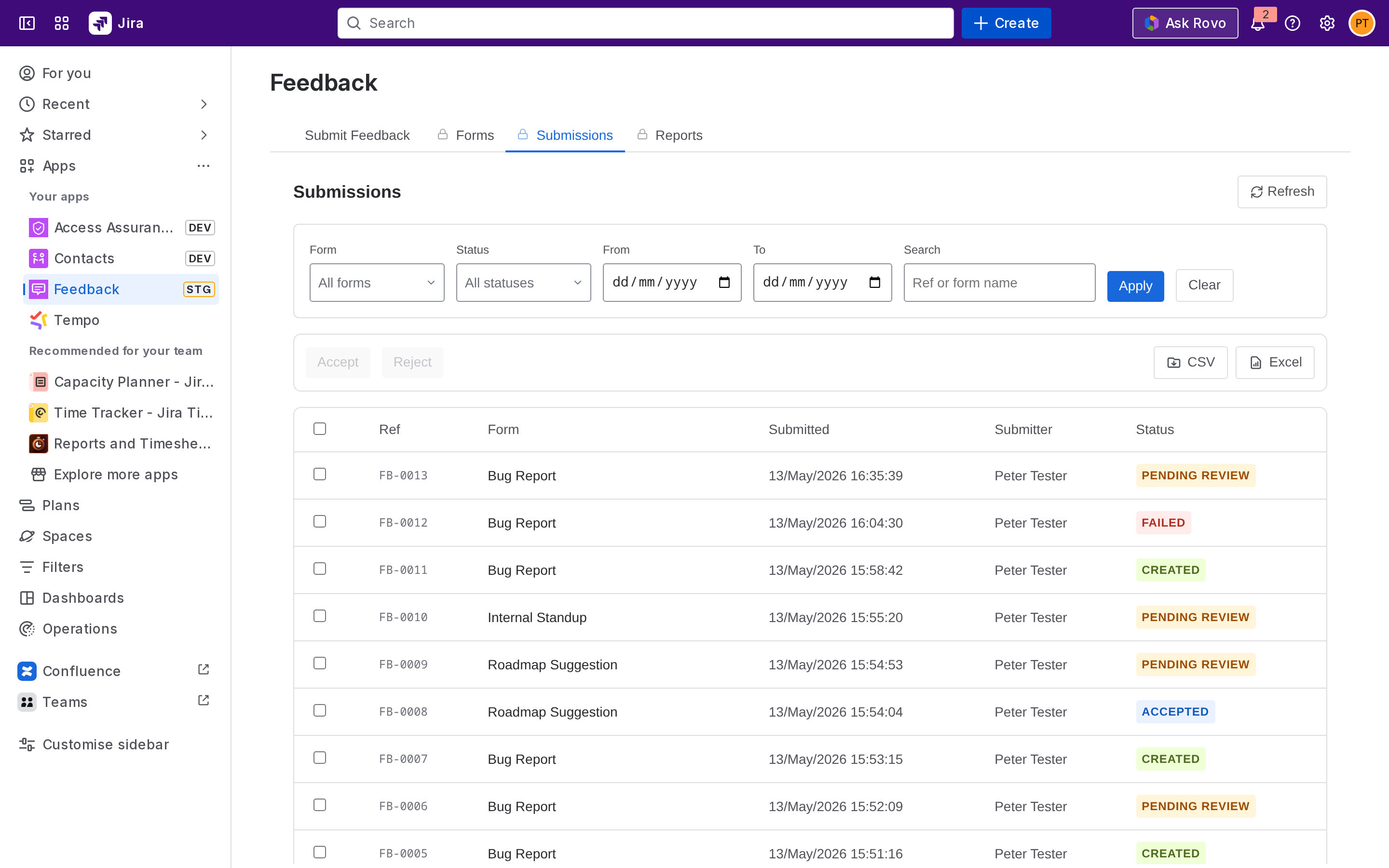
Statuses you'll see:
|
Status |
Meaning |
|---|---|
|
Pending Review |
Newly submitted, awaiting admin action. |
|
Created |
Accepted and a Jira work item was created (mapped forms). |
|
Accepted |
Accepted with no Jira creation (unmapped forms). |
|
Rejected |
Closed by an admin without creating a work item. |
|
Failed |
Acceptance was attempted but Jira creation failed, retry available. |
Submission detail
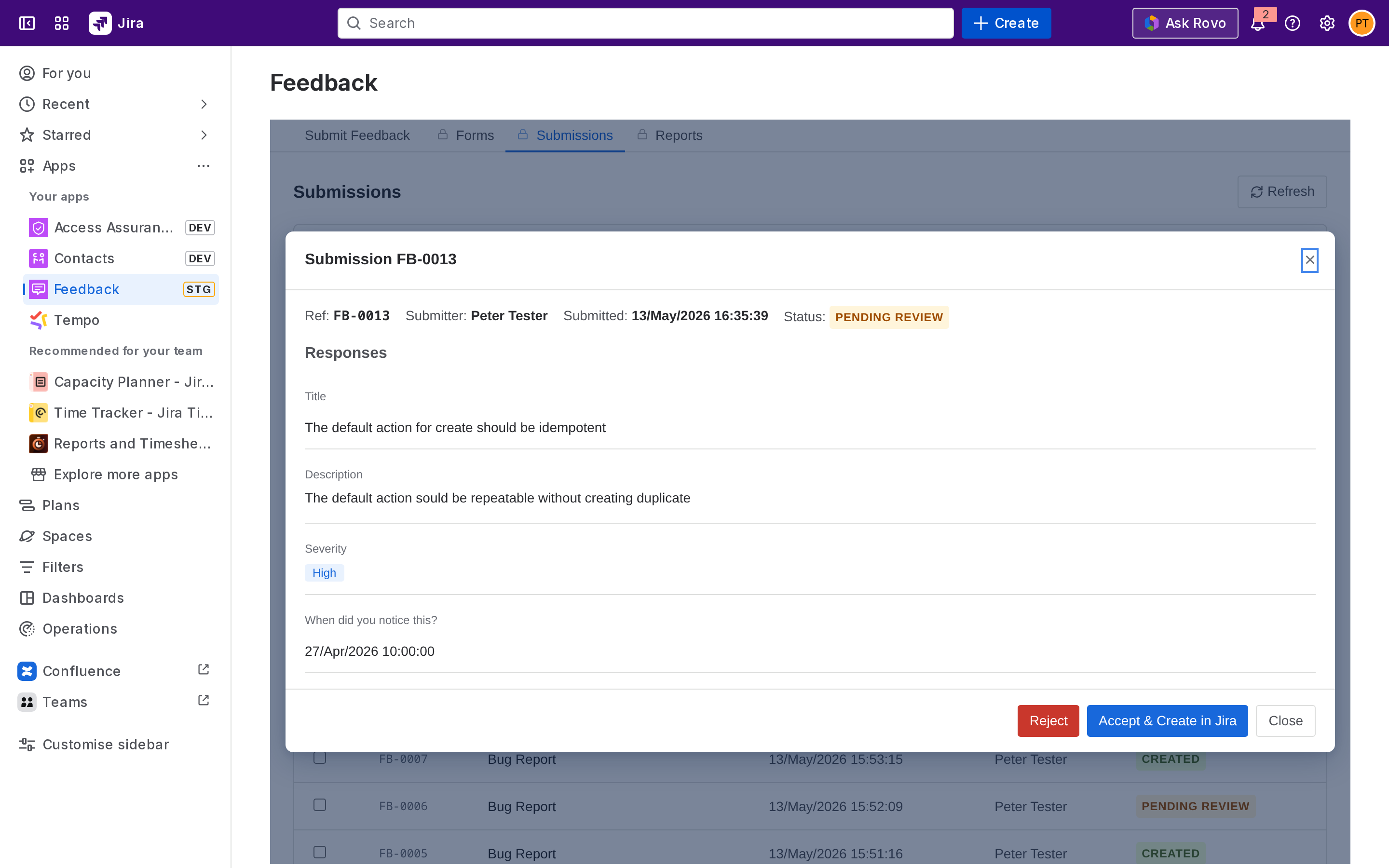
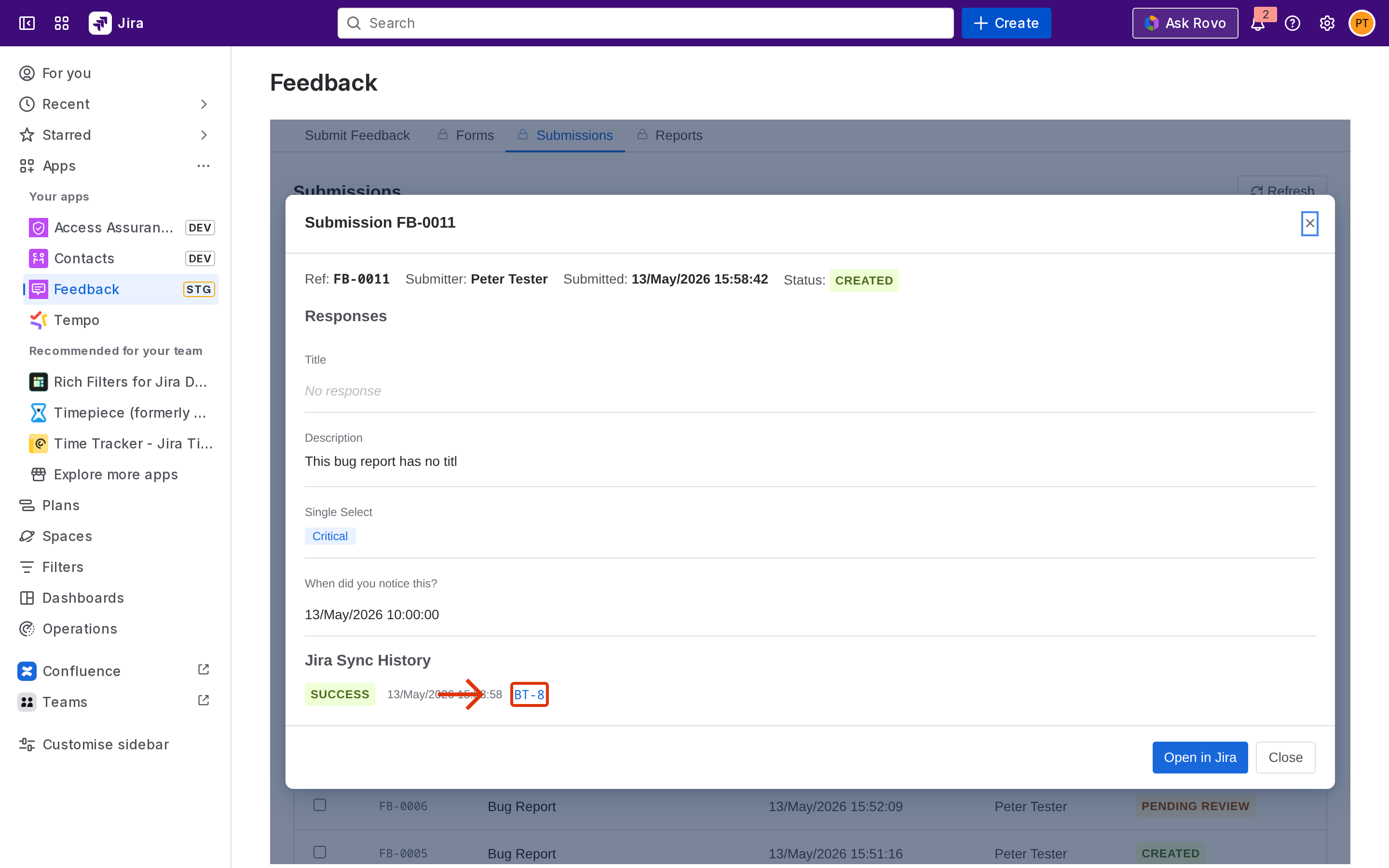
Click a row to open the submission detail. You see the form name, submitter, submission timestamp, and every field value.
Actions
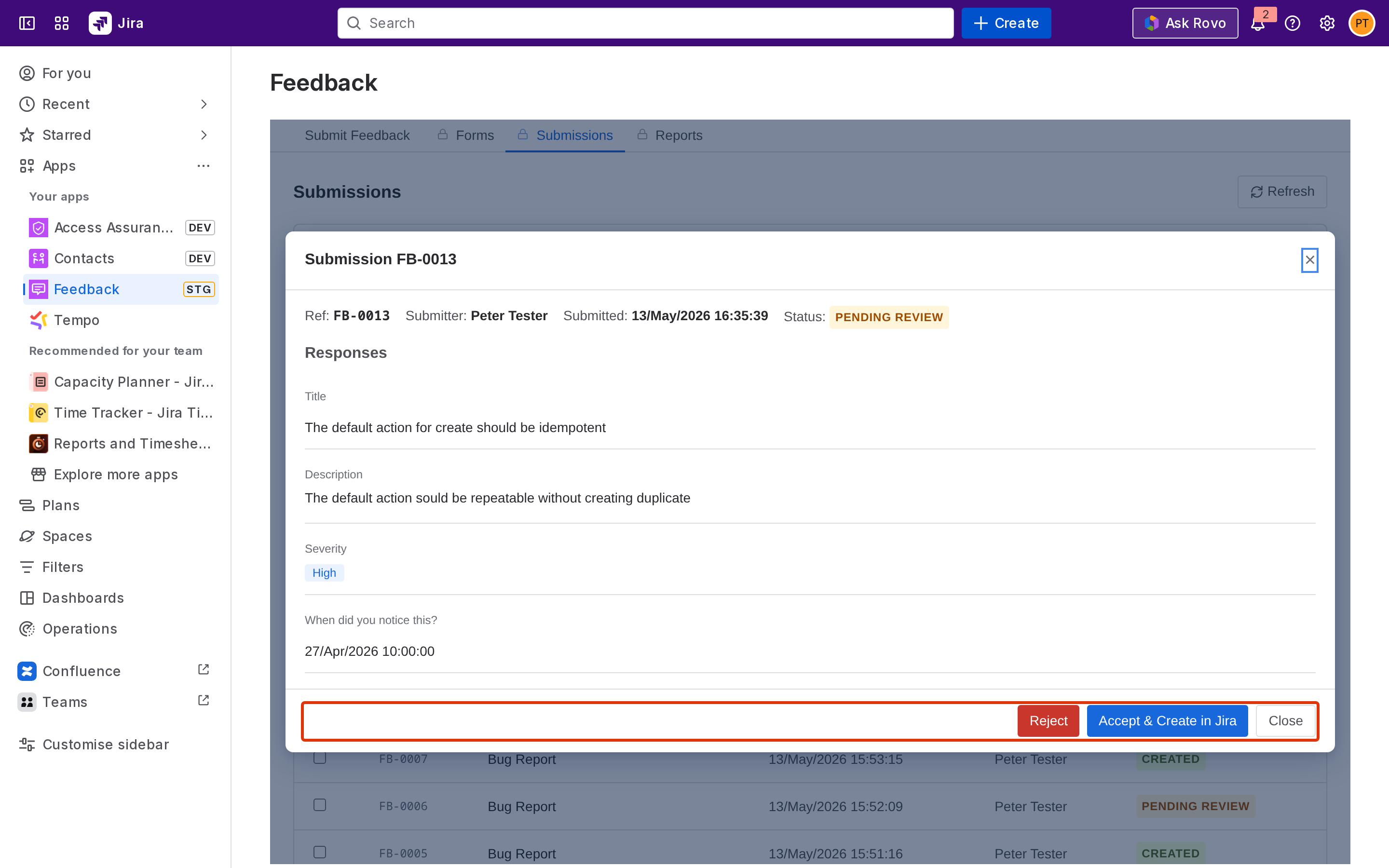
The action buttons available depend on the submission's current status and whether the form has a Jira mapping.
|
Button |
When it appears |
What it does |
|---|---|---|
|
Accept |
Pending Review, no Jira mapping |
Marks the submission accepted. No Jira issue is created. |
|
Accept & Create in Jira |
Pending Review, form is mapped |
Marks accepted and creates the Jira work item from the mapping. |
|
Reject |
Pending Review |
Prompts for a reason; closes the submission without a Jira issue. |
|
Retry Jira Sync |
Failed |
Re-runs Jira creation. Useful when the original failure was transient (e.g. a missing required field that has since been mapped). |
A 60-second rate limit applies to retries, if you click Retry too soon, a please wait message appears.
Filters and bulk actions
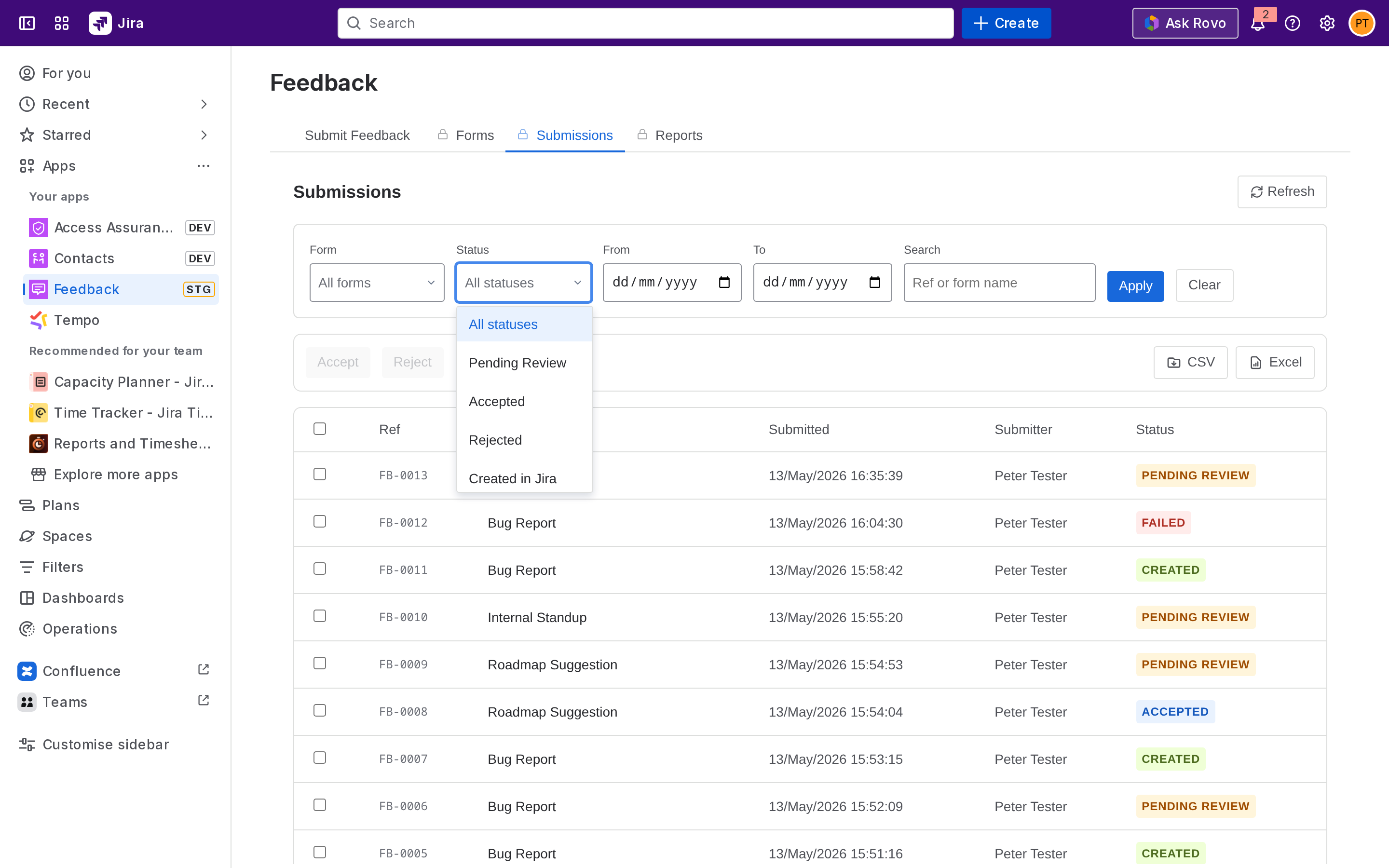
Use the filters at the top of the tab to narrow by status, form, or date range. Use the row checkboxes plus Bulk Accept / Bulk Reject to action multiple submissions at once.
After acceptance
When acceptance creates a Jira issue, the submission detail shows a direct link to the new work item. Click it to open the issue in Jira.
Next step
Viewing reports - see counts and export submission data.