
Saving an email file and adding it to Confluence
Most email clients require you to save your email as a file on your computer. Then you can drag and drop that file into Confluence with Togetha MailDrop.
Once the file is dropped, the contents of your email will be inserted into the page, along with any attachments listed at the bottom.
The steps are slightly different depending on whether you’re adding your email to a Confluence page, blog, or a live doc.
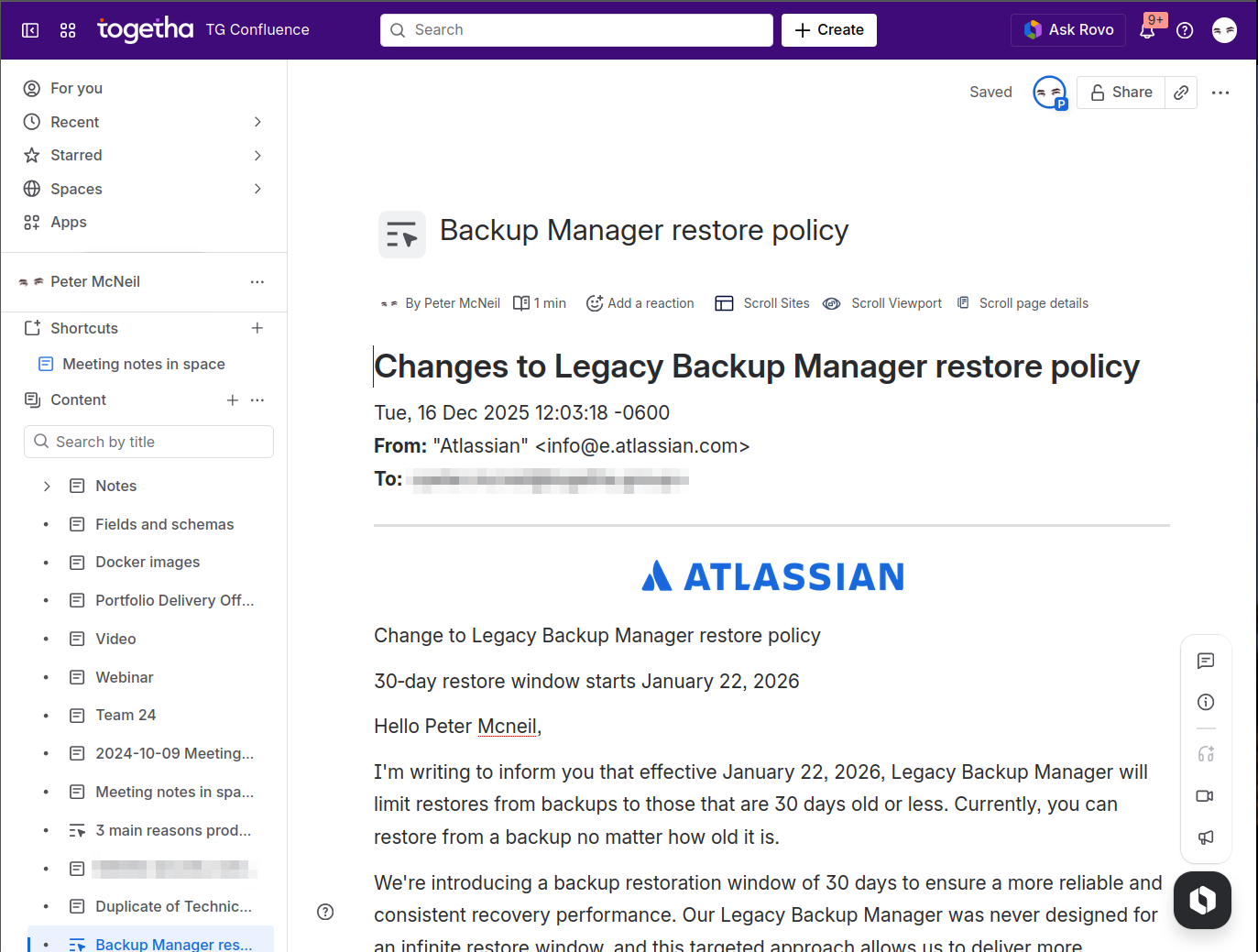
Adding an email to a Confluence page or blog
-
Go to the email you want to import and download/save it to your computer.
-
Create a new page or blog in Confluence.
-
Publish the page/blog.
-
Edit the page.
-
Drop the email file onto the page.
-
Update to share the email’s contents.
Adding an email to a Confluence live doc
-
Go to the email you want to import and download/save it to your computer.
-
Create a live doc in Confluence.
-
Drop the email file into the live doc.
TOP TIP:
If you want to use pages, not live docs, it’s actually faster to use the live doc method, then convert to a page. So, create a live doc, add your email to that, then click the More actions button and select Convert to page.
This way, you avoid the hassle of having to publish the page, edit it again, drop the email, and hit update before your email can be shared.
Example: Gmail
Example: Mail on Mac
Dragging an email directly
Most email clients require you to save your email as a file before dragging and dropping into Confluence.
Some, like Thunderbird, let you drag the email directly from your email client.
Example: Thunderbird
Access restrictions
If your space or page has access restrictions, Togetha MailDrop may not be allowed to edit your page. Togetha MailDrop is the same as a co-worker editing your page, so it needs permission.
You can give Togetha MailDrop permission by:
-
Clicking the padlock icon
-
Adding Togetha MailDrop for Confluence as a user that can edit the page.
You may need an admin to change space permissions.
Formatting limitations
Togetha MailDrop for Confluence will do its best correcting any formatting and layout issues. However, your email may contain some HTML that’s hard to display properly in Confluence, requiring you to do a little cleaning up afterwards.
Also note that Confluence doesn’t support much CSS styling, e.g. links made to look like buttons. So we provide a text link.
Background colours from emails are lost, which means any light-coloured text may not show up well. You’ll need to highlight the text and change the colour.
Finally, Confluence may not display images linked to certain web servers (external images). This may be because Confluence doesn’t trust them, or the external service doesn’t trust Confluence, or the browser has tracking protection.